Understanding Docker containers and images
- Docker is a platform for running applications in a light weight environment called containers.
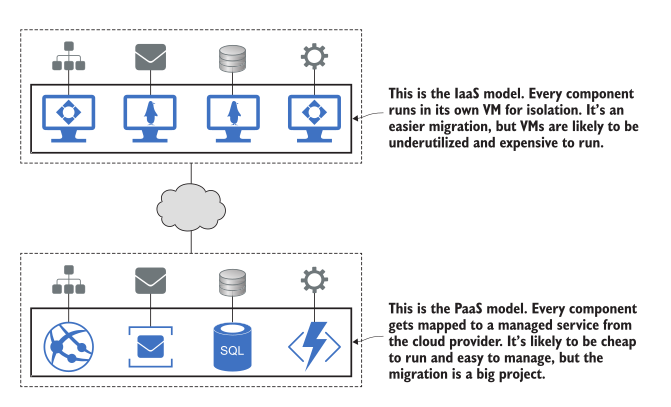
- Migration of an app to the cloud can be done using IaaS or PaaS. Neither option is great. PaaS locks you in a single cloud but cost efficient and IaaS ends up in higher running costs since it ends up spinning a bunch of virtual machines for various components and hence highly portable.
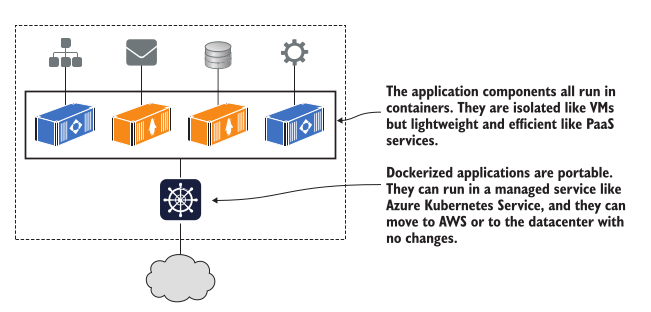
- Docker provides an alternative option where you can run each component of your application in a container and then you can run the whole application in a container using an orchestration platform such as Kubernetes.
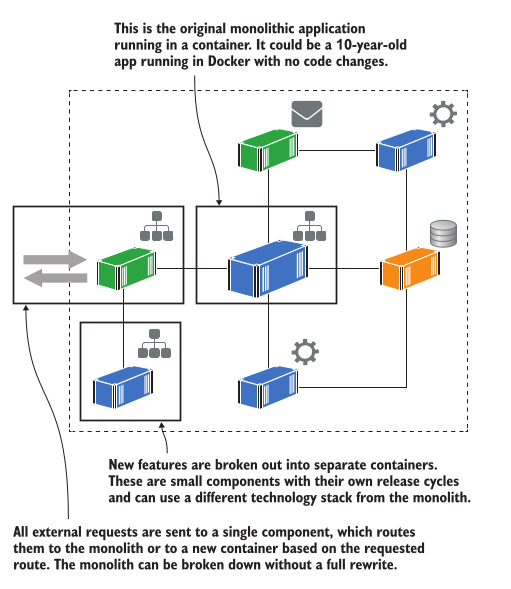
- Docker in a monolith architecture
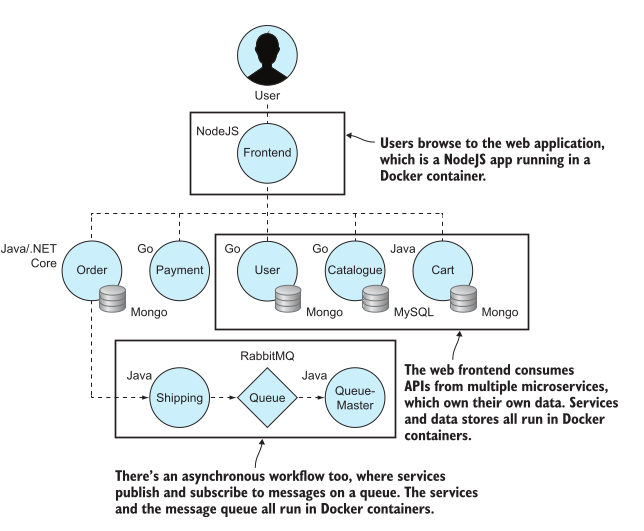
- A monolith architecture project can be decomposed into a distributed application without rewriting the whole project. All the components run in Docker containers and a routing component decides whether requests are fulfilled by the monolith or a new microservice.
- Docker in a microservice architecture
- Cloud native applications are built with microservice architectures where every component runs in a container.
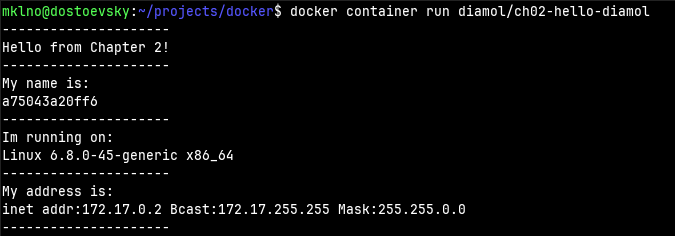
Hello World in Docker
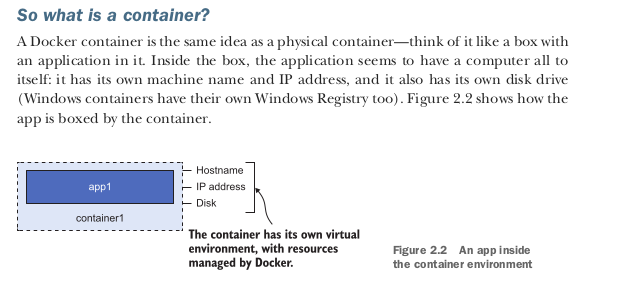
What is a Container?
Why is this so important?
- It resolves two problems in computing: isolation and density.
- Density meaning running multiple applications on your computer as much as possible.
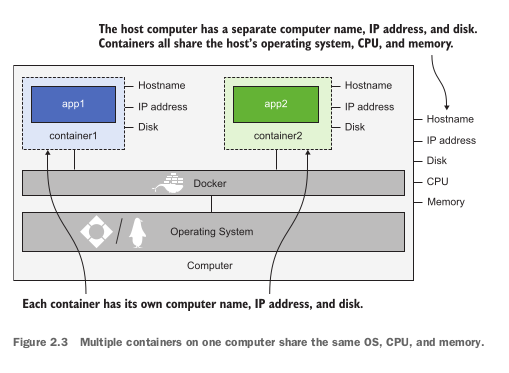
- We could use VM as an alternative but each VM needs its own OS while Docker makes use of the underlying OS.
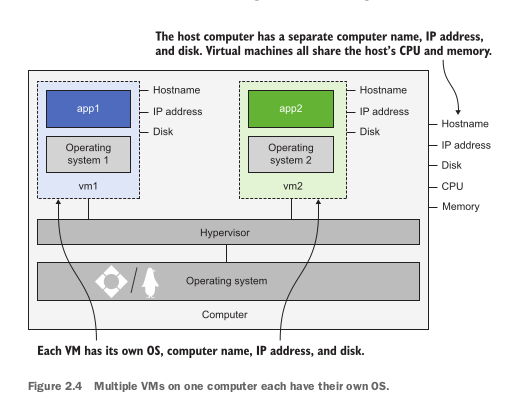
- That may look like a small difference in the diagrams, but it has huge implications. Every VM needs its own operating system, and that OS can use gigabytes of memory and lots of CPU time—soaking up compute power that should be available for your applications. There are other concerns too, like licensing costs for the OS and the maintenance burden of installing OS updates. VMs provide isolation at the cost of density. Containers give you both.
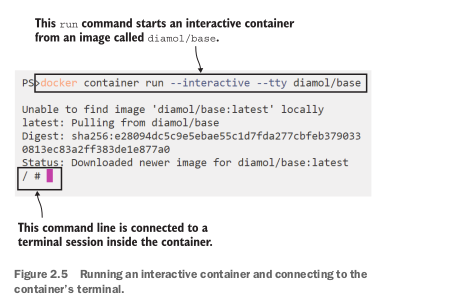
Connecting to a container like a remote computer
Commands
  # list all the containers
  docker container ls
  # check all the process which are running
  docker container top CONTAINER
  # check the logs of the container
  docker container logs CONTAINER
  # inspect the container
  docker container inspect CONTAINER
State of a Container
First, containers are running only while the application inside the container is running. As soon as the application process ends, the container goes into the exited state. Exited containers don’t use any CPU time or memory. The “Hello World” container exited automatically as soon as the script completed. The interactive container we were connected to exited as soon as we exited the terminal application. Second, containers don’t disappear when they exit. Containers in the exited state still exist, which means you can start them again, check the logs, and copy files to and from the container’s filesystem. You only see running containers with docker container ls, but Docker doesn’t remove exited containers unless you explicitly tell it to do so. Exited containers still take up space on disk because their filesystem is kept on the computer’s disk.
Notes
- Clean up commands
  docker container rm -f $(docker container ls -aq)
  docker image rm -f $(docker image ls)